
Getting started with XJBoardExplorer
Install the latest software
Download the XJTAG software using the link in the purchase confirmation email titled “Your order from XJTAG is on its way!”, then install it on your PC.
If the email confirmation doesn’t come through (and it isn’t in the junk/spam folder) you can also download it from your ‘My account‘ area. Log in to your account, find your XJBoardExplorer order, click to ‘View’ the order details, and download the software from there.
Licensing
The first time the application is opened the Licence Manager will be displayed.
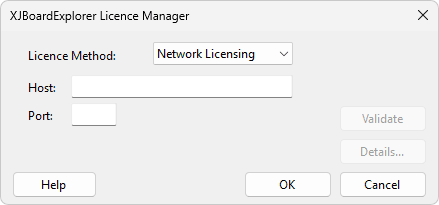
Cloud Licensing
When you purchase a cloud licence subscription, you will receive an email containing your license key.
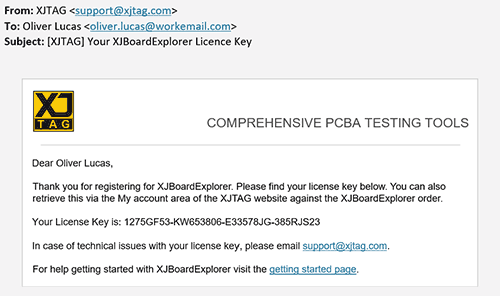
- Select the ‘Cloud Licensing’ licence method and enter the licence key.
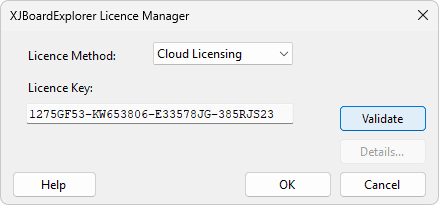
- Click ‘Validate’ to check the licence key is valid and that licence seats are available.
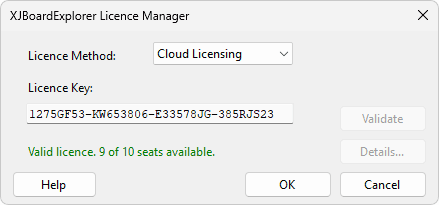
- Click ‘OK’ to attempt checkout a cloud licence seat and use the application.
The licence key will be saved and used automatically for future application launches.
FlexNet Network Licensing
Network Licences can be configured in the Network Licensing tab.
- Enter a valid Host and Port and click ‘Validate’ to confirm the server details are correct and that licence seats are available.
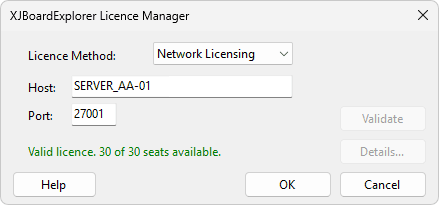
- Click OK to attempt to check out a network licence seat and start using the application.
The host and port settings will be saved and used automatically for future application launches.
Closing without a valid licence
If the Licence Manager is closed without a valid licence, a warning dialog will be displayed. This may occur if the licence details are missing or invalid, or if no licence seats are available.
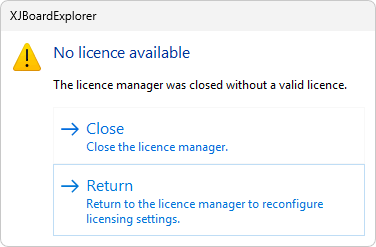
If the licence details are valid but a seat cannot be obtained, the details will be saved and used for future licence checks. If the details are deemed invalid, they will not be saved.
If you close the Licence Manager without a valid licence, you will not be able to continue using the application.
Help
Online help for XJBoardExplorer is available at any time. You can access this via the Help menu within the application.